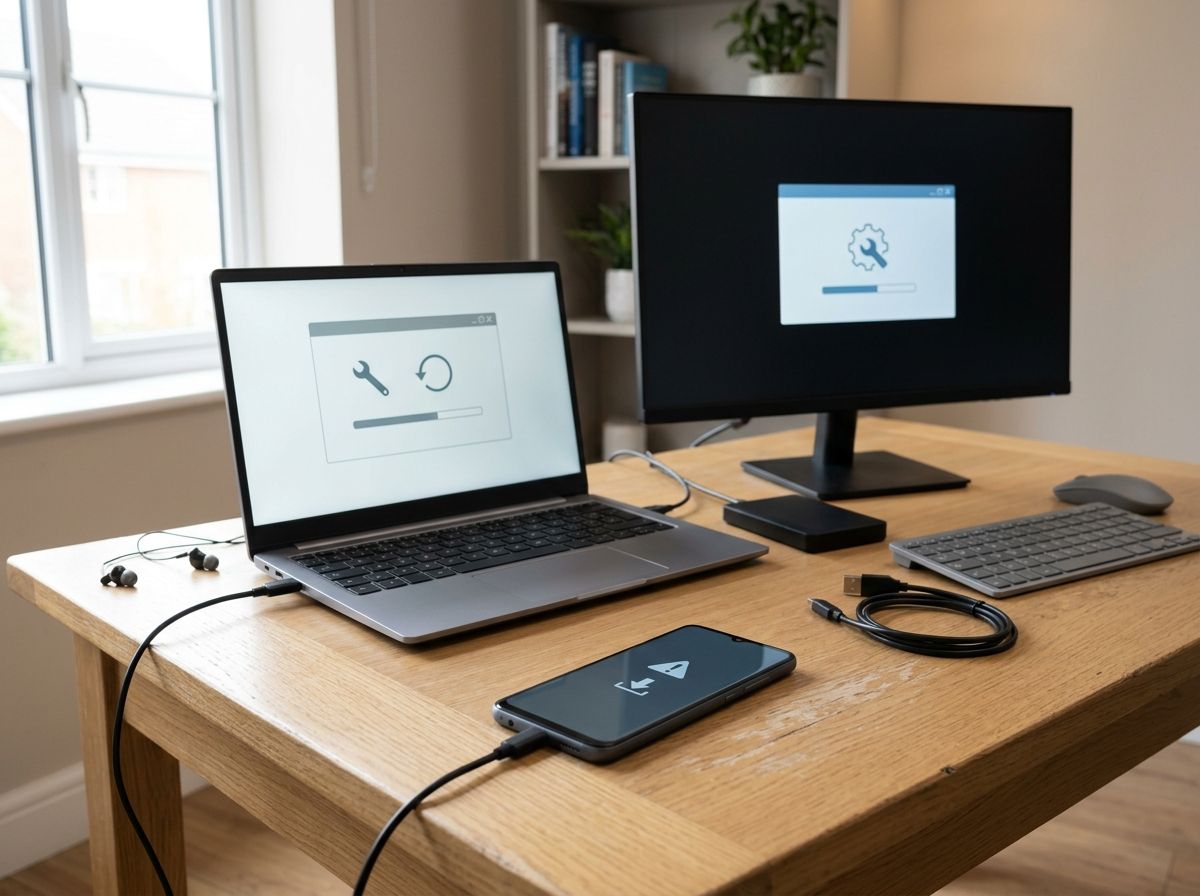
Recovery mode is a built-in repair screen that loads outside your device’s normal operating system, letting you fix, update or reset it when it won’t start properly. You’ll usually land there after a stuck update, a bootloop, or a forgotten passcode, and it works on phones, tablets and computers alike. It’s not a sign your device is broken beyond saving; it’s a safety net Apple, Google, Microsoft and every other manufacturer builds in for exactly this situation.
This guide covers what recovery mode actually does, how it differs from safe mode and a factory reset, and step-by-step instructions for iPhone, Android, Windows and Mac, plus what to check before you touch a single button.
What Is Recovery Mode, Really?
Recovery mode is a separate, stripped-down boot environment stored on its own partition, away from your main operating system. Because it lives on its own bit of storage, it can still load even when Android, iOS or Windows itself has become corrupted and won’t start normally.
Think of it as an emergency room for your device. Instead of opening apps or browsing files, you get a short menu of repair tools: reinstalling the system software, wiping temporary files, restoring from a backup, or, in worse cases, wiping the device back to factory settings.
Every major platform has some version of it, though the name and the exact menu change from one to the next:
- iPhone and iPad: Recovery Mode, reached via iTunes, Finder or the Apple Devices app
- Android: Recovery Mode, reached with a button combination on startup
- Windows: Windows Recovery Environment (WinRE), reached through Advanced Startup
- Mac: macOS Recovery, reached with Command+R (Intel) or the power button (Apple silicon)
When Do You Actually Need It?
Most people only ever see recovery mode by accident, and that’s normal. You don’t need to go looking for it unless something has genuinely gone wrong.
Common triggers include a device stuck on a logo screen for more than 10 minutes, a software update that fails partway through, a phone that keeps restarting in a loop, or a forgotten screen lock passcode. It’s also the standard route for wiping a device before selling it or handing it back on a phone contract.
None of these situations mean your hardware is faulty. In the vast majority of cases, recovery mode fixes the problem in under 20 minutes, and your device goes back to working exactly as before.
Recovery Mode vs Safe Mode vs Factory Reset
These three terms get mixed up constantly, so it’s worth being precise, since picking the wrong one can cost you data you didn’t need to lose.
Recovery mode
A separate boot environment used for serious, system-level problems, such as a device that won’t boot into its main OS at all. Some options here (particularly “Restore” or “Wipe data”) will erase everything on the device.
Safe mode
A normal boot into your usual operating system, but with all third-party apps temporarily disabled. It’s a much gentler first step, useful when you suspect a dodgy app is causing crashes, and it doesn’t touch your data at all.
Factory reset
The most drastic option of the three. It wipes all your data, settings and installed apps, returning the device to how it left the factory. You can trigger a factory reset from inside recovery mode, but you can also usually do it from within a working operating system’s settings menu, without going anywhere near recovery mode.
The safest order to try is: restart normally, then safe mode, then recovery mode, and only use factory reset as a last resort once you’ve backed up anything you can.
How to Enter Recovery Mode on an iPhone or iPad
Apple’s process depends on which iPhone you own, since older models with a Home button use a different button combination to newer Face ID models.
- Connect your iPhone to a Mac or PC with a USB or USB-C cable
- Open Finder on a Mac, or the Apple Devices app on Windows (iTunes still works on older Windows setups, but Apple has been phasing it out)
- On an iPhone 8 or later, quickly press and release Volume Up, then quickly press and release Volume Down
- Press and hold the Side button until the recovery screen appears, showing a cable and a computer icon
- On an iPhone 7, hold Side and Volume Down together; on a Home button model, hold Home and the Top or Side button together
Once Finder or Apple Devices detects your iPhone, you’ll be offered Update (reinstalls iOS without erasing your data) or Restore (wipes everything). Always try Update first, according to Apple’s own support guidance, since it’s the non-destructive option.
How to Enter Recovery Mode on Android
Android recovery mode varies more by manufacturer than iPhone does, but the general approach is similar across Samsung, Google Pixel, and most other brands sold in the UK.
- Power the phone off completely
- Press and hold the Power button and Volume Down together (some brands use Volume Up instead, so check your specific model if this doesn’t work)
- Keep holding until you see a text-based recovery menu, since the touchscreen won’t respond here
- Use the volume keys to move between options and the power button to select
You’ll typically see options such as Reboot system now, Apply update from device, Wipe cache partition and Wipe data/factory reset. Only the last one erases your personal data, so avoid it unless that’s genuinely what you want.
How to Enter Recovery Mode on Windows 11 or 10
Windows calls this the Windows Recovery Environment, or WinRE, and there are several routes in depending on whether your PC still starts normally.
If Windows still boots:
- Press Windows key + I to open Settings
- Go to System, then Recovery
- Next to Advanced startup, select Restart now
- Once it reboots, choose Troubleshoot, then Advanced options
If Windows won’t boot at all:
- Turn the PC on and wait for the manufacturer logo
- As soon as you see it, hold the power button for 5 to 6 seconds to force a shutdown
- Repeat this two or three times
- On the third attempt, Windows should automatically enter the Windows Recovery Environment
From there, you can access Startup Repair, System Restore, Command Prompt, Uninstall Updates, and Safe Mode, according to Dell’s official UK support documentation.
How to Enter Recovery Mode on a Mac
The method depends entirely on whether your Mac has an Intel chip or Apple silicon (M1, M2, M3 or newer).
Intel Macs: Restart your Mac and immediately hold Command (⌘) and R until the Apple logo or a spinning globe appears.
Apple silicon Macs:
- Shut your Mac down completely from the Apple menu
- Press and hold the power button until you see “Loading startup options”
- Click Options, then Continue
- Select an admin account, enter the password, and you’re in macOS Recovery
From here you can reinstall macOS, restore from a Time Machine backup, use Disk Utility to repair the drive, or start up in Safe Mode, according to Apple’s own support pages.
Before You Go Into Recovery Mode: A Quick Checklist
A little preparation avoids most of the stress that comes with a device that won’t start properly.
- Back up first if you can. If your device still turns on at all, even briefly, get anything irreplaceable off it before trying deeper fixes
- Charge the battery. Recovery mode can fail to trigger, or interrupt itself, if the battery drops too low mid-process
- Use an official cable. Cheap or damaged USB cables are a common cause of a computer failing to detect a phone in recovery mode
- Read every option twice. Recovery menus don’t always explain clearly which choices erase data, so don’t select anything you’re not sure about
FAQs
Does recovery mode delete everything on my phone?
No, not automatically. Entering recovery mode itself does nothing to your data. Only specific options within the menu, such as “Restore” on iPhone or “Wipe data/factory reset” on Android, actually erase your files, so read the screen carefully before selecting anything.
How long does recovery mode take?
A simple software update through recovery mode usually takes 10 to 20 minutes, depending on your internet connection and how large the download is. A full restore or factory reset can take longer, sometimes up to an hour, particularly on older or slower devices.
Why is my phone stuck in recovery mode and won’t exit?
This is often caused by a faulty cable, an outdated version of iTunes on Windows, or a battery that’s too low. Try a different USB cable, a different USB port, and make sure your computer is running the latest software before attempting again.
Is recovery mode the same as DFU mode on iPhone?
No, they’re different. Recovery mode still shows a screen and works with the operating system’s own recovery tools, while DFU (Device Firmware Update) mode bypasses the operating system entirely and is used for deeper firmware-level repairs, usually by technicians rather than everyday users.
Can I use recovery mode without losing my passcode-locked data?
It depends on the option you choose. Reinstalling the operating system without erasing (the “Update” option on iPhone, for example) generally keeps your data intact, but if you’ve forgotten your passcode and need to get back in, you’ll usually have to erase the device, since there’s no way around Apple or Google’s encryption without it.
What’s the difference between recovery mode and safe mode?
Safe mode boots your device normally but disables third-party apps, without touching any data, while recovery mode is a separate environment used for more serious problems where the device won’t boot at all. Always try safe mode first if your device does turn on.
Do I need an internet connection for recovery mode?
For a Mac reinstalling macOS or a phone downloading a fresh operating system, yes, you’ll usually need a stable internet connection. Wiping data or applying an already-downloaded update generally doesn’t require one.